
You're prepping a photo for Instagram or a product listing, and you need to cut out the subject, replace the background, then crop it to the right format. Three simple moves, but often three different apps, each with its own account, its own export, and sometimes its own subscription. The result: you waste time hopping from one tool to the next, and the image ends up compressed from all the back-and-forth.
It's a fair question: do you really need five AI photo editing tools, or can a single one handle the whole chain? The short answer: today, one workflow is enough for the vast majority of cases. In this guide, you'll see the fastest method first, then the free and paid alternatives, with their real strengths and their limits. By the end, you'll know exactly which tool to open depending on what you need to do — no guessing.
Do you really need five tools to edit an image?
No: cutting out, swapping the background, and cropping are three operations that recent tools bundle into a single interface, which makes juggling multiple apps pointless for most everyday visuals. The habit of jumping between several apps comes from an era when each task required specialized software: one for cutting out, one for the background, a classic editor for cropping.
This fragmentation has a real cost. Every move from one tool to another means an export, often a recompression of the file, and a small drop in quality. Multiply that by five steps and your crisp starting photo ends up blurry. Add the loading times, the accounts to create, and the incompatible formats, and a two-minute edit takes fifteen.
So the real yardstick isn't the number of features, but the number of times you export and re-import your image. The fewer breaks in the chain, the better you preserve quality and the faster you move. That's exactly what sets the three methods below apart.
Method 1: chain everything in Skilzy's AI Lab
The most direct solution is to handle cutout, background, and cropping all in one place, in Skilzy's AI Lab, without switching apps or re-exporting between steps. The AI Lab is the built-in space where you use real image tools directly inside the platform, with credits included, without piling up separate subscriptions.
In practice, you import your photo, then open the Image tab and the “Background” section. There you'll find three edits side by side: Cut out (isolate your subject), Change the scene (replace the background), and Bokeh effect (blur the background for a portrait look). Each edit shows a before/after slider so you can preview the result without committing.
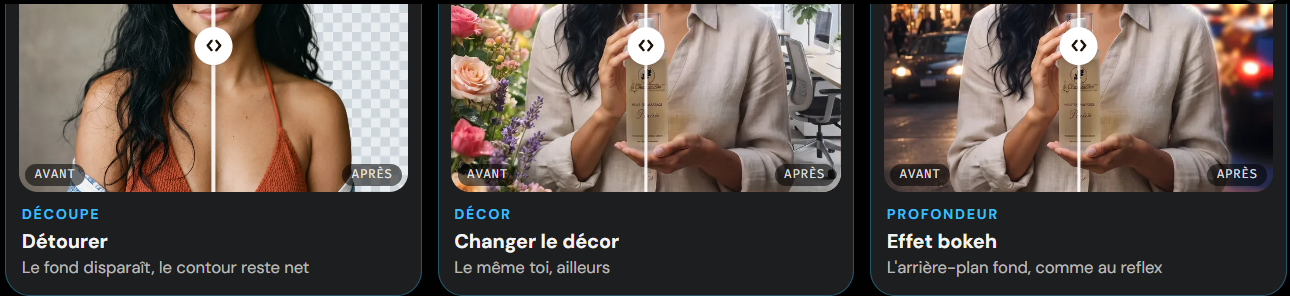
The upside: you cut out, swap the background, then crop to the format you want without ever leaving the page. Your file stays high quality from start to finish, because there's no intermediate export. And if you want to understand the why behind each setting rather than clicking at random, Skilzy is first and foremost a learning platform: the courses in the full image and visual creation program explain when to cut out cleanly, when to prefer a background blur, and how to choose a believable scene.
This single-chain logic pays off the moment you produce at volume. If you post regularly, it fits neatly into an organized publishing flow: our guide to automating social media publishing shows how to link visual creation and going live without ten manual steps in between.
Method 2: your phone's built-in feature
Your smartphone can already cut out a subject for free, which is enough for a quick share but stays limited for background swaps and professional cropping. It's the cheapest option, and it would be dishonest to hide it from you: it's already in your pocket.
On iPhone (iOS 16 and up), press and hold a subject in the Photos app: the phone isolates it automatically and you can drop it onto a white background or into another message. On Android, Google Photos offers “Magic Eraser” to remove elements and, on recent Pixels, background editing tools. The cutout is often stunning, especially on hair and edges.
The limits show up fast. Background swapping stays basic: you isolate the subject, but rebuilding a believable scene behind it takes another app. Cropping to the precise social formats (1080x1080, 1080x1350, 1080x1920) is done by hand, with no guide. And you still go through several apps, so you fall right back into successive exports and quality loss. For a one-off fix, it's perfect; for regular production, it shows its limits.
Method 3: specialized third-party tools
Dedicated online services like automatic cutout tools or background editors deliver excellent results on a specific task, at the cost of stacking up accounts and subscriptions. This is the classic route when the built-in feature isn't enough and you don't want an integrated platform.
Among the best known: automatic cutout tools that isolate your subject in one click, like remove.bg, and product-listing-oriented editors like Photoroom, which replace the background and offer templates. For cropping and layout, a general-purpose graphic editor like Canva often rounds out the chain. Each one is great at its specialty.
The problem isn't the quality, it's the tally. Cut out with one, swap the background with another, crop with a third: you multiply accounts, exports, and, above all, monthly subscriptions. A cutout tool, a background editor, and a cropping tool billed separately quickly cost more than a single solution — for a result that's sometimes worse because of the recompressions. These tools keep all their value if you have a very specific, recurring need on a single step; for a full workflow, the stacking weighs you down.
Comparison: which tool for which need?
The right choice depends on how often you edit and the level of polish you expect, not on some absolute ranking. Here's how to decide quickly.
| Need | Recommended method | Why |
|---|---|---|
| Chaining cutout, background, and crop often | Skilzy AI Lab | Everything in one place, no intermediate export, quality preserved |
| Cutting out a photo in a pinch | Phone's built-in feature | Free, already installed, decent result on the subject |
| One very specific, repeated move | Specialized third-party tool | Excellent at its single task, but one subscription per tool |
| Learning to edit, not just clicking | AI Lab + Skilzy courses | The training explains the when and why of each setting |
The real question to ask yourself: how many times a week do you do these edits? For occasional use and a simple cutout, the phone wins on being free. As soon as you produce visuals regularly, with backgrounds and precise formats, the single chain takes the lead on time saved and quality kept. And if you're also comparing AI assistants to write your captions or image prompts, our Claude vs ChatGPT test will help you pick the text tool that pairs with your visuals.
How much time and money you really save
Bundling your edits into one workflow saves time above all and avoids piling up subscriptions — two savings that are easy to put numbers on. Take a simple case: ten visuals a week to cut out, rework, and crop.
With multiple tools, count three exports per image, plus loading and manual cropping: easily ten to fifteen minutes per visual, or more than two hours a week. With a single chain, no intermediate export, you often drop under five minutes per image. Over a month, the gap adds up to full hours reclaimed.
On budget, add up the subscriptions for specialized tools: a cutout tool, a background editor, sometimes a premium cropping tool. Each billed separately, the total quickly beats the cost of a single integrated solution. You no longer pay one brick at a time.
One last point that often gets forgotten: mental load. One place to open, one account, one final export. You stop wondering “which tool was it again for the background.” That gain — invisible but daily — is what changes the way you produce.
Conclusion
Cutting out, swapping the background, and cropping no longer justify five separate tools. A single, well-designed workflow preserves your image quality, saves you time, and spares you from stacking subscriptions. Keep your phone's built-in feature for quick fixes, third-party tools for a very specific need, and an integrated solution like the AI Lab as soon as you produce regularly. The best move is still to compare on a real photo, under real conditions, before you decide.