
You've shot the footage, you have your script, and now you have to edit. That's usually where projects die: cutting the silences, syncing the captions, finding music, exporting in the right format for TikTok and then again for YouTube. AI now handles a good chunk of that work — but not all of it. It's very effective on repetitive tasks (transcription, captions, dead-air removal, auto-reframing, audio cleanup) and noticeably weaker on pacing, intent, and shot selection, which is exactly what makes a video enjoyable to watch.
This article walks you through two concrete methods for editing a video with AI, what each one costs, how much time it actually takes, and a six-step workflow you can reuse on every video you make. No technical skills required: if you can send a file from your phone, you can start today. You can prepare the text part, starting with the script, in the Skilzy chat before moving on to the editing tool of your choice.
What AI can do in a video edit (and what it gets wrong)
AI handles the mechanical parts of editing very well: transcription, captions, silence removal, reframing, audio cleanup. It handles pacing, intent, and shot selection badly — those stay your job.
An edit isn't a single action, it's a series of micro-tasks. Here's which ones are reliable today and which still need your eye.
| Task | What AI does | Real-world reliability |
|---|---|---|
| Transcription and captions | Generates text synced to the voice | Good: expect a few fixes on proper nouns and technical terms |
| Silence removal | Cuts dead air, hesitations, and every "um" | Good, but review it: it sometimes cuts useful breaths |
| Reframing 16:9 to 9:16 | Tracks the face or the main subject | Good with one person on screen, hit-or-miss with several |
| Audio cleanup | Removes background noise, echo, hiss | Excellent — this is the fastest win |
| B-roll generation | Creates illustrative images or clips | Variable: you'll sort through a lot and rerun often |
| Shot selection and pacing | Offers a full automatic edit | Weak: the result is flat, the calls are yours to make |
The practical takeaway is simple. On a two-minute short-form video, AI absorbs the thankless part (transcribe, caption, clean, resize) in a few minutes, whereas those steps easily eat an hour by hand. But if you also hand it the decision of what stays on screen, you end up with a video that's technically fine and boring to watch. The right instinct: AI for execution, you for decisions.
One note on vocabulary, because it causes a lot of confusion. "AI video editing" actually covers two different things: edit assistance (you have footage, AI helps you assemble it) and video generation (you shot nothing, AI builds the images from a text prompt). These are two distinct crafts, and often two distinct tools. If the second one is what interests you, start instead by understanding how to generate a video from text.
Method 1: consumer AI video editors
If you already have your footage and just want to cut it together, a standard AI video editor does the job, often free for simple use.
These tools assume the raw material already exists. They automate assembly, not creation.
- CapCut: the most widely used for vertical formats. Automatic captions, background removal, smart reframing, a template library. The free version covers most needs; advanced AI features and watermark-free export are paid.
- Descript: editing by text. The tool transcribes your video, you delete a word in the transcript and the matching footage disappears from the timeline. Devastatingly effective for interviews, filmed podcasts, and tutorials.
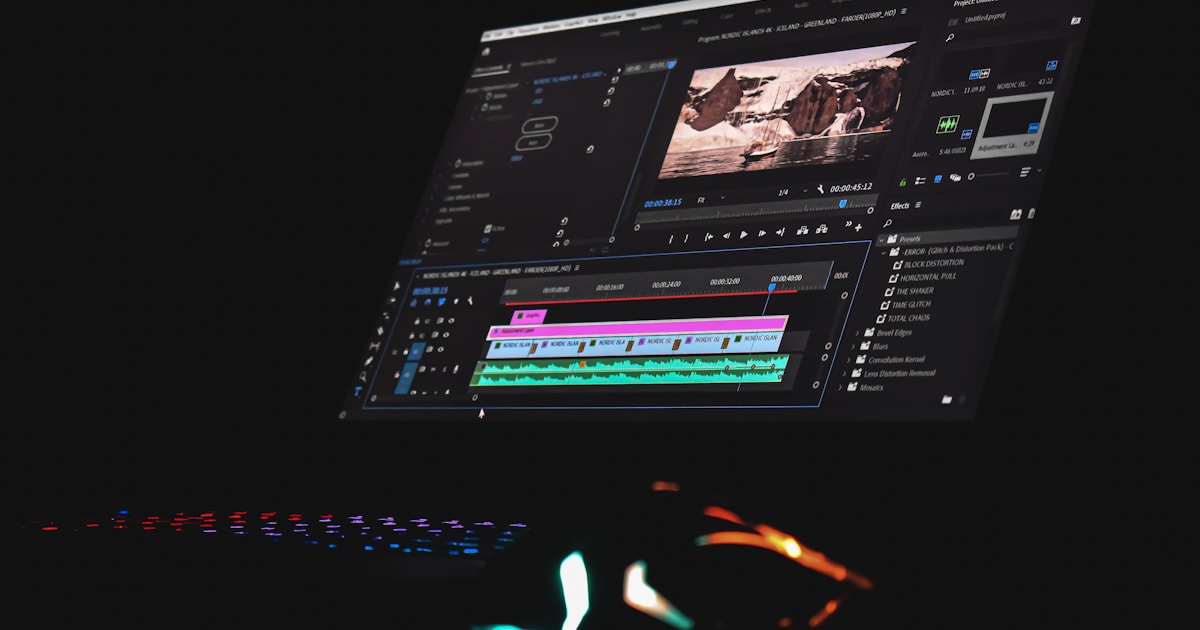
- Adobe Premiere Pro: the professional standard, which now offers the same text-based editing principle. It's powerful but dense, and the subscription sits in a different price bracket. The official text-based editing documentation explains how it works in detail.
- Opus Clip and similar tools: you drop in a long video and the tool automatically pulls out short clips with captions and vertical reframing. Handy for recycling a livestream or a podcast. The waste rate is still high: out of ten suggested clips, two or three are genuinely publishable.
Quick way to choose: short formats and speed, take CapCut; a lot of talking to cut down, take a text-based editor; recycling long-form content, take a clip extraction tool. And if your end goal is to publish consistently, the next step is to automate posting to social media — otherwise the time you save on editing gets swallowed by uploading.
Method 2: the automatic editor already sitting in your phone
Your phone already contains a free automatic editor, and for a simple video it's more than enough.
This is the option most articles forget to mention, even though it costs nothing and is already installed.
On iPhone, the Photos app builds "Memories" automatically from your videos and images, with music and transitions. iMovie, free on the App Store, adds "Magic Movie" mode: you select clips and the app generates a paced edit you can then adjust shot by shot. On Android, Google Photos creates automatic videos around a theme or a person, and Samsung phones include an editor with automatic suggestions in the Gallery.
What it does well: stringing clips together in chronological order, cutting to the beat of the music, adding a title, exporting straight into the right format. All in three minutes, no account to create, no credits to burn.
What it doesn't do: generate images that don't exist, produce a convincing voiceover, write captions in a custom style, or sustain a publishing rhythm of several videos a week. The moment you move from memory videos to content videos, you hit the ceiling fast. But for a first video, try this option before paying for a subscription: at minimum you'll learn what else you actually need.
The 6-step workflow that works every time
A successful AI edit always follows the same order: write first, edit second, dress it up last. Flipping those steps is the number one cause of failed videos.
- Write the script before you film or generate anything. Three sentences are enough for a 30-second video: a hook, one useful point, one action to take. That text determines the final length — not the edit.
- Gather the raw material. Either you film it, or you generate the shots with AI, or you mix both. Always plan for 30% more footage than you think you'll use.
- Get it transcribed. The transcript is the backbone of modern editing: it feeds the captions, the cuts, and the description on your post.
- Cut. Remove the silences, the hesitations, and above all the first five seconds if they don't hook. A short video is won or lost in the first three seconds.
- Add the audio. Cleanup first, voiceover next if needed, music last and at low volume. Timbre and accent matter a lot here: we compared the results in our test of AI voiceovers.
- Dress it up and export. Readable captions (large, centered, two or three words at a time), one format per platform, and 1080p is plenty in nearly every case.
Budget 20 to 30 minutes for a short video once the workflow is dialed in, versus two hours with traditional manual editing. The real win isn't the speed of one video, it's being able to publish ten a week without burning your evenings. To apply this workflow to vertical format, our guide on creating Reels and TikToks with AI breaks down the settings platform by platform.
The mistakes that ruin an AI edit
Most disappointing AI videos fail for reasons of method, not technology.
- Trusting automatic captions without proofreading them. Transcription slips on proper nouns, brand names, and run-together words. Thirty seconds of proofreading prevents a misreading blown up across the screen.
- Letting AI set the pace. Automatic edits produce shots of uniform length, which feels mechanical. Vary it manually: one long shot, two short ones.
- Piling on effects because they're there. Zooms, transitions, filters: every one added "because the tool offers it" pulls the viewer away from the message.
- Generating images before writing the script. You end up with pretty shots that say nothing, then spend an hour writing a script that fits the images.
- Editing once for every platform. A 16:9 format hastily cropped for TikTok chops off faces. Take the time to check the vertical framing.
- Neglecting the audio. Average visuals with clean sound get a pass. Beautiful visuals with dirty sound don't. It's the most consistent rule in video.
What to remember
AI doesn't edit your video for you: it removes the mechanical work so you can spend your time on the decisions that matter.
Start with the simplest thing: run your phone's automatic editor on an existing video to identify what's missing. If what's missing is assembly speed, a consumer AI editor will do fine. In both cases, publish your first video before you go hunting for the perfect tool: publishing is what teaches you, not comparing subscriptions.