
Removing the background from a photo on Android takes less than a minute once you know where to tap. Whether you want to cut out a product to resell it, isolate your face for a profile picture, or place an object on a clean white background, there are three routes: Skilzy's AI Lab, the tool already built into your phone, and specialized apps you download. We tried them all on real photos (a portrait, a piece of clothing laid on a table, an object with tricky edges like hair or leaves). This guide walks you through each method step by step, with its strengths and limits, so you can pick the one that truly fits your need. You don't need to be a graphic designer or install ten apps: you'll see, it's simpler than you think, and the first method works straight from your phone's browser, with nothing to install.
Method 1: cut out your photo in Skilzy's AI Lab
Skilzy's AI Lab cuts out your photo automatically in a few seconds, straight from your Android browser, with no app to install and no juggling between multiple subscriptions. It's a built-in workspace where you use real AI tools (credits included) to retouch your images, generate visuals, or test ideas.
Here's the step-by-step:
- Log in to your Skilzy account and open the AI Lab.
- Go to the Image tab, then scroll down to the Background section.
- Choose Cut out, import your photo from your gallery, and let the tool isolate the subject.
- Compare the result with the before/after slider, then download your image as a transparent-background PNG.
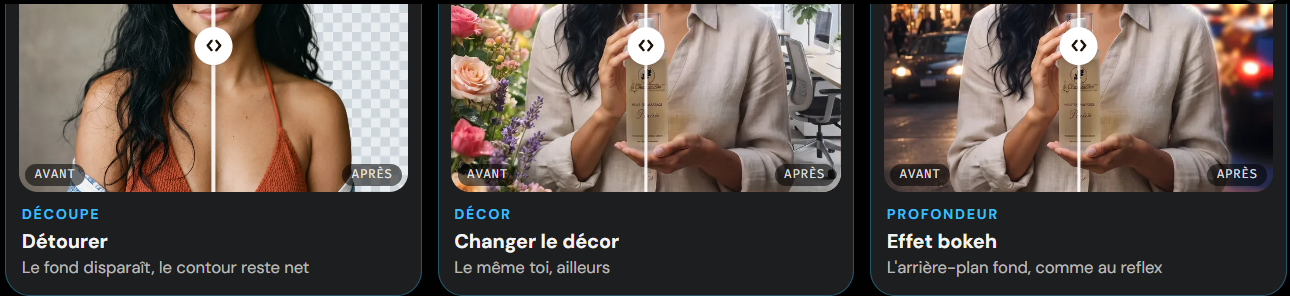
In the same section, you don't just remove the background: you can also Change the scene (swap the background for a beach, a studio, a brick wall) or add a Bokeh effect to nicely blur the background, like in portrait photos. That's where the Lab goes beyond a simple eraser: you move from cutting out to full retouching without switching tools.
This cut-out feature is part of Skilzy's AI image creation program, one of the training programs offered by the platform. The idea isn't just to help you out once, but to make you self-sufficient: understanding how automatic cut-out works, when it gets it wrong, and how to get a clean result every time.
Method 2: your Android phone's built-in tool
Most recent Android phones can cut out a photo for free, via Google Photos, the Samsung Gallery, or the Pixel's Magic Eraser, with nothing extra to install. It's the fastest option for a one-off fix, as long as your device is recent enough.
Depending on your brand, the path changes a bit:
- Google Photos (on many Android phones): open the photo, tap Edit, and look for the Erase background or Cut out option in the tools. On some models, you can even long-press the subject to “lift” it and copy it elsewhere.
- Samsung Gallery (Galaxy): open the image, long-press the subject; the phone cuts it out on its own and offers to save it as a separate file or share it.
- Google Pixel: the Magic Eraser feature removes unwanted elements, and long-pressing an object lets you extract it from its background.
You can check which features are available for your model in the official Google Photos help. The upside is obvious: it's free, offline, and already in your pocket. So is the limit: the result depends heavily on the photo. On a well-contrasted subject (a person in front of a plain wall), it's very clean. On fine edges (hair, animal fur, transparent glass), the cut-out often leaves white smudges or nibbles away a strand. And depending on your phone's age, the option may simply not exist.
Method 3: third-party cut-out apps
Apps like remove.bg, PhotoRoom, or Canva can be downloaded from the Play Store and cut out your photos, often with a limited free quota and then a subscription to go further. They're handy if you cut out a lot of images, especially for online selling.
A few pointers to find your way:
- remove.bg: very simple, you import a photo and it returns a transparent background in one step. The free version exports in low resolution; high definition is paid. You can see how it works on the official remove.bg website.
- PhotoRoom: designed for sellers (Vinted, Leboncoin, online stores). It cuts out the subject, then offers ready-made backgrounds (studio white, colors, scenes). Free quota, then subscription.
- Canva: the “Remove background” tool is built into the editor, but reserved for the paid Canva Pro plan. Worth it if you already use Canva for your visuals.
These apps generally give good results, sometimes better than the built-in tool on tricky edges. The trade-offs: you have to install one more app, create an account each time, put up with free quotas you'll hit quickly, and keep an eye on what the app does with your photos (read the permissions it requests). For occasional use, it does the job; for regular use, subscription costs add up fast when you stack several.
Comparing the three methods
In short, the AI Lab centralizes everything in one place, the built-in tool helps you out for free, and third-party apps suit high-volume cut-outs. Here are the three methods side by side to decide at a glance.
| Criterion | Skilzy AI Lab | Built-in tool | Third-party apps |
|---|---|---|---|
| Installation | None (browser) | None (already there) | To download |
| Cost | Monthly subscription | Free | Free but limited, then paid |
| Quality on fine edges | High | Varies by model | Good to high |
| Also changes the background | Yes (scene, bokeh) | Rarely | Often |
| Learning included | Yes | No | No |
| Ideal for | Creating and improving | Quick fixes | Bulk cut-outs |
Which method to choose for your need
Choose Skilzy's AI Lab if you want to do everything in one place and build your skills, the built-in tool for a one-off, free need, and a third-party app if you cut out dozens of photos a week. Your real usage should guide the choice, not how new the tool is.
If you just have one photo to cut out tonight and a recent phone, the built-in tool does the job at no cost: start there. If you sell online and churn out product visuals, an app like PhotoRoom will save you time, even if it means paying a subscription. And if you want to cut out, change the scene, blur the background, and later generate your own images, the AI Lab brings it all together and saves you from stacking five different subscriptions.
Beyond the tool, there's a real skill to acquire: knowing how to retouch an image cleanly is useful for a resume, a store, an Instagram page, or a side project. If the topic interests you but you don't know where to start, read our guide on learning AI as a beginner, and if budget is a hurdle, first check out the best resources to learn AI for free before committing.
Conclusion
Cutting out a photo on Android is nothing complicated: the built-in tool helps you out for free, third-party apps handle volume, and Skilzy's AI Lab centralizes cut-out, scene changes, and learning all in one place.