

Cutting out an image means isolating a subject (a product, a person, an object) by removing all the background around it. The result: a visual on a transparent background that you can drop onto another color, a banner, or a product listing. For a simple photo, a free tool does the job in seconds. For flyaway hair, a transparent glass, or a fuzzy outline, those same tools start to smear and leave traces behind.
This guide first shows you how to cut out an image cleanly, then pinpoints exactly where the line is: at what point free stops being enough, and what habit to adopt based on how you actually use it. You don't need any editing skills to follow along. We'll go method by method, with concrete examples and the cases where each solution falls apart.
What's the easiest way to cut out an image?
The easiest way is to use an AI Lab that handles background removal, scene swapping, and background edits all in one place, with no software to install. That's the starting point I recommend for a beginner, because you see the before/after result live and adjust without starting over.
In the Skilzy AI Lab, you open the Image tab, section „The background," and you get three bundled edits: Cut out (remove the background), Change the scene (replace the background with another), and Bokeh effect (blur the background to make the subject stand out). Each one comes with a before/after slider so you can compare at a glance.
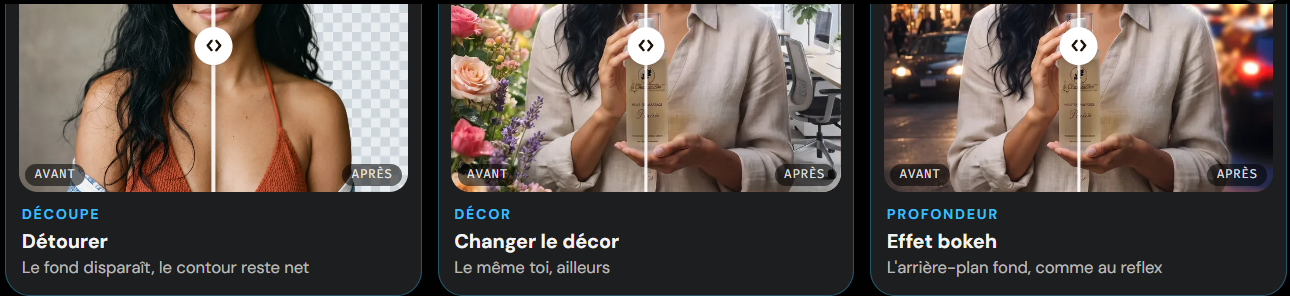
The appeal for a complete beginner: you don't stack three different subscriptions for three needs. Background removal, scene swapping, and background blur are all in one place, with credits included. If you want a broader understanding of how to produce clean visuals without being a graphic designer, the approach is detailed in our guide on how to create pro visuals without being a designer.
As for getting started, Skilzy bundles more than fifteen programs to learn how to use AI (image, video, music, automation, prompts). To go further, take a look at Skilzy's visual creation programs, which cover background removal as well as full image generation and editing.
Is your phone's built-in feature enough?
Yes, for quick, occasional background removal, your phone's built-in feature is enough and costs nothing. It's actually the first thing to try if you just need to isolate a clean subject to send to someone.
On iPhone (from iOS 16 onward), you open a photo, press and hold on the subject until you see a glowing outline, then choose „Copy" or „Share." The subject is automatically extracted from the background. On many recent Android phones (Google Photos, Samsung galleries), an equivalent feature exists under names like „Cut out" or „Erase background."
What it does very well:
- An object or a person that stands out clearly from the background
- A clean outline, with no transparency or fine detail
- A one-off need, without switching to a computer
The limits show up quickly the moment the subject gets more complicated. The built-in feature doesn't let you touch up the outline by hand, it doesn't handle hair or fur precisely, and it locks you into the app's output format (often with no transparency setting). For repeated professional use, you'll hit the ceiling fast.
Remove.bg and third-party online tools: who are they for?
Online tools like remove.bg are designed for one-click automatic background removal, handy for a moderate volume of simple photos. You drop in your image, the algorithm removes the background, and you download a transparent PNG. It's fast and the basic quality is decent on clean subjects.
The business model is the classic trap. Most of these services let you try for free, then limit download resolution, the number of images per month, or high definition behind a subscription. So a remove.bg alternative should be judged on three points: quality on difficult outlines, free output resolution, and price once you exceed the quota.
A few benchmarks for choosing a third-party tool:
- Free resolution: some block HD, and you get back an image too small to print
- Fine outlines: test on a photo with hair before you pay
- Monthly quota: count how many images you actually cut out per month
- Manual touch-up: the ability to correct the outline by hand changes everything on tricky cases
These tools shine on standardized volume (product photos on a light background, clean portraits). They disappoint the moment the photo steps outside the ideal frame, and that's exactly where the question of free really comes into play.
When are free tools enough, and when do they break down?
Free tools are enough as long as the subject is sharp, well lit, and set against a contrasting background; they break down on blurry outlines, hair, transparent materials, and backgrounds close to the subject's color. Knowing this line saves you an hour of fixing a botched cutout.
Cases where free does the job perfectly:
- A product set on a white or plain background
- A sharp person, arms at their sides, with an open background
- An object with crisp outlines (a chair, a bottle, a phone)
Cases where free shows its limits:
- Hair and fur: fine strands are either clipped off or surrounded by a halo
- Transparent materials: a glass, glasses, or a veil let the background show through, which the tool can't handle
- Low contrast: a dark subject on a dark background, and the algorithm can no longer find the edge
- Motion blur: a moving subject has an uncertain outline that the tool cuts through badly
When you hit one of these cases, you have two options: either touch up the outline by hand in a tool that allows it, or work around the problem. For example, rather than cutting out a subject with complicated hair, the bokeh effect (background blur) makes the subject stand out without requiring a perfect outline. It's often the best compromise for a profile photo or a thumbnail. Keeping a record of your successful attempts in a simple tracking table, no Excel needed helps you reuse what works instead of starting over every time.
How to choose based on how you actually use it?
The right tool depends on three things: how often you cut out images, how difficult the photos are, and the output quality you need. Here's a quick reference to decide without hesitating.
| Your use | The right solution |
|---|---|
| A one-off cutout, sharp subject | Your phone's built-in feature |
| A small volume of simple photos | A free online tool like remove.bg |
| Difficult photos (hair, transparency) | An AI Lab with background edits and before/after |
| Regular cutouts plus scene swapping and bokeh | An all-in-one AI Lab with credits included |
| Wanting to learn how to produce complete visuals | A program dedicated to image creation |
The real saving isn't measured by the sticker price but by the time you spend fixing things. A free cutout that forces you to redo every outline by hand costs you more than a solution that produces a clean result the first time. If you cut out images once a month, stick with free. If you produce visuals every week, a tool that bundles background removal, scene swapping, and blur saves you from juggling three subscriptions and saves you hours.
One last point for beginners: cutting out is just one building block. Also knowing how to change a scene, blur a background, or generate a clean image makes you self-sufficient on the whole visual, not just the outline.
Conclusion
Cutting out an image is nothing complicated as long as the photo is sharp and the background open: your phone's feature or a free online tool are plenty. The difficulty starts with hair, transparent materials, and backgrounds with no contrast, where free leaves halos and clipped outlines. The right instinct is to know this line, choose the tool based on how often you shoot and how difficult your photos are, and test before you pay. Start simple, and step up only when your photos demand it.